- All in MYTH
- Pattern AI
- Colorway
Pattern AI · In Editor · Colorway generator
Colorway
One print, in every colour you need.
Split a design into its colours, one layer each, and recolour it by hand, by a colour rule or from your palettes, with the nearest Pantone for every colour. Free, in your browser.
2–22 coloursFree
How it works
Three steps in Colorway
- 01
Separate the colours
Right-click a frame in MYTH Edit, pick Separate into Colors… and let MYTH find 2 to 22 colours, or add your own with the eyedropper (Add color). The original frame stays as it is.
- 02
Recolour
Select a colour to see its nearest Pantone and change it. Texture keeps the shading and weave, Flat fills the exact colour. Auto Recoloring builds a palette from one colour rule.
- 03
Make the variants
Run Generate Auto Variants or Generate Variants From Saved Palettes: each variant opens as its own frame. Keep the best as colour combinations and export them.
See it work
Same design, new colours
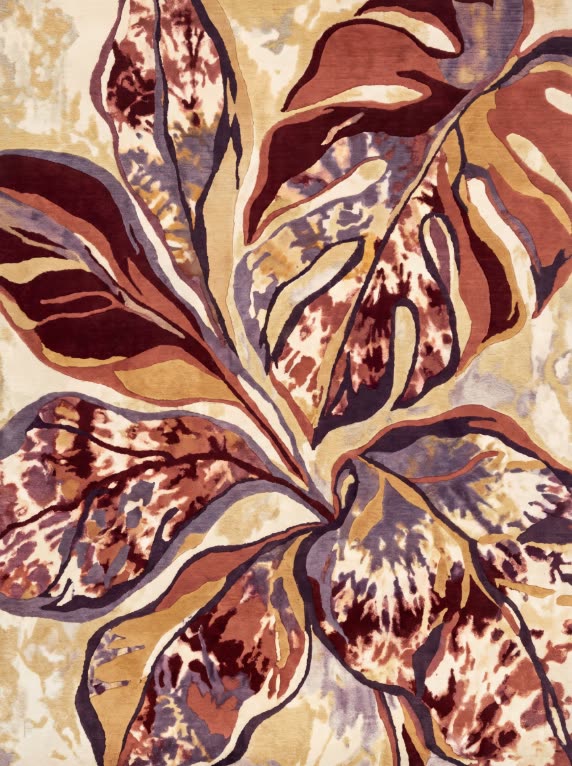
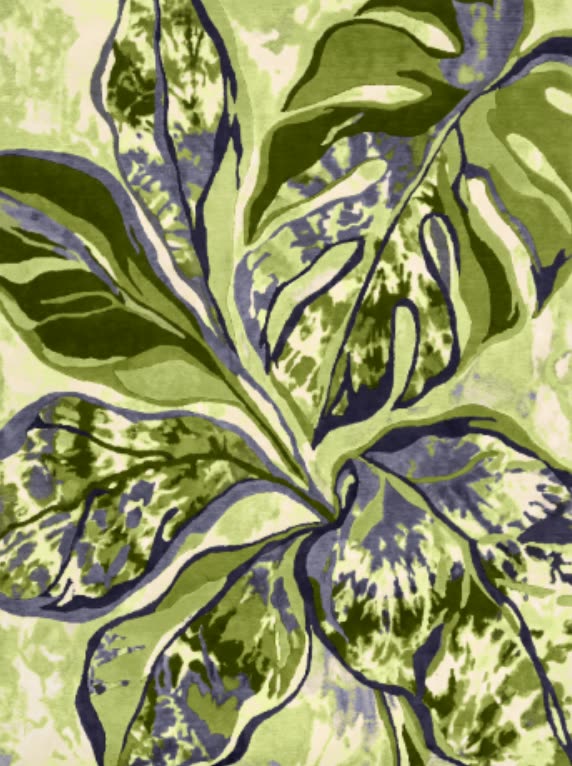
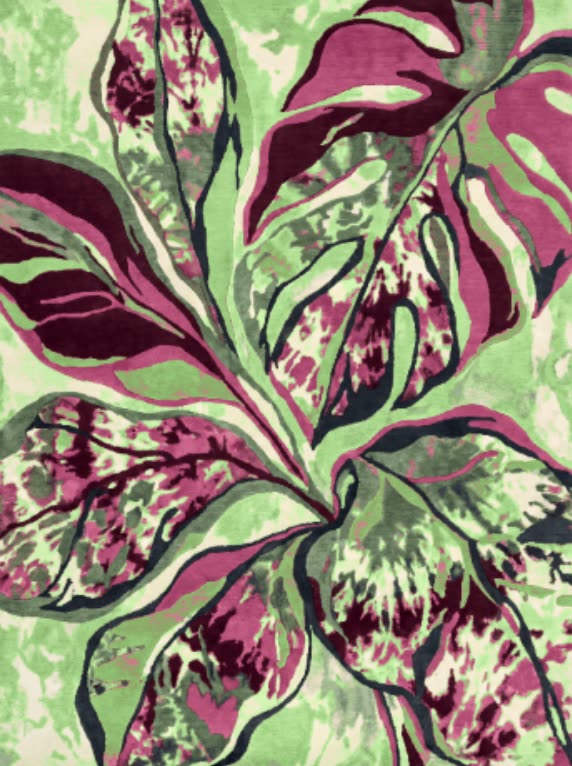
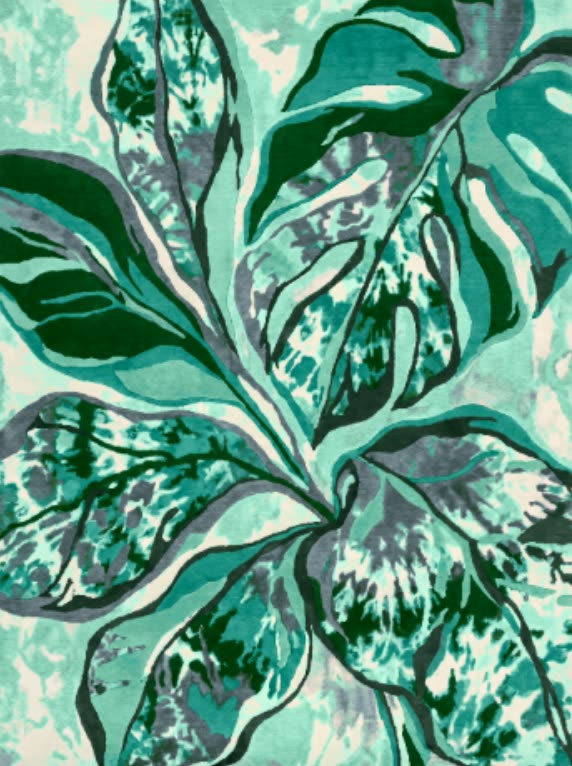
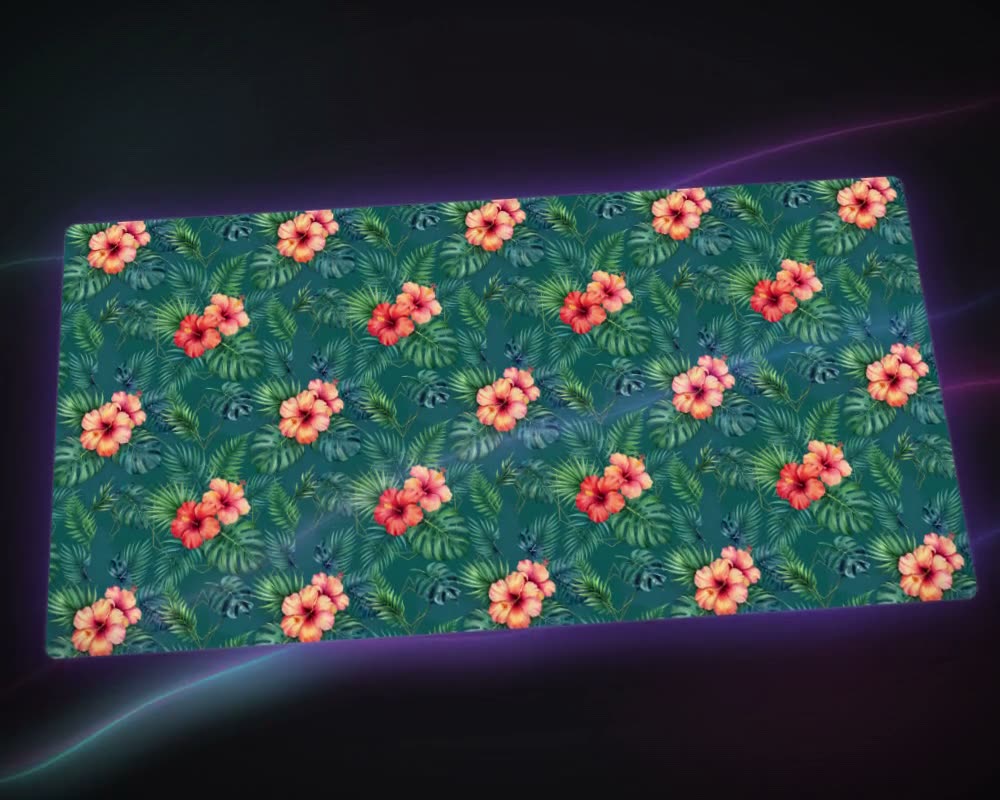
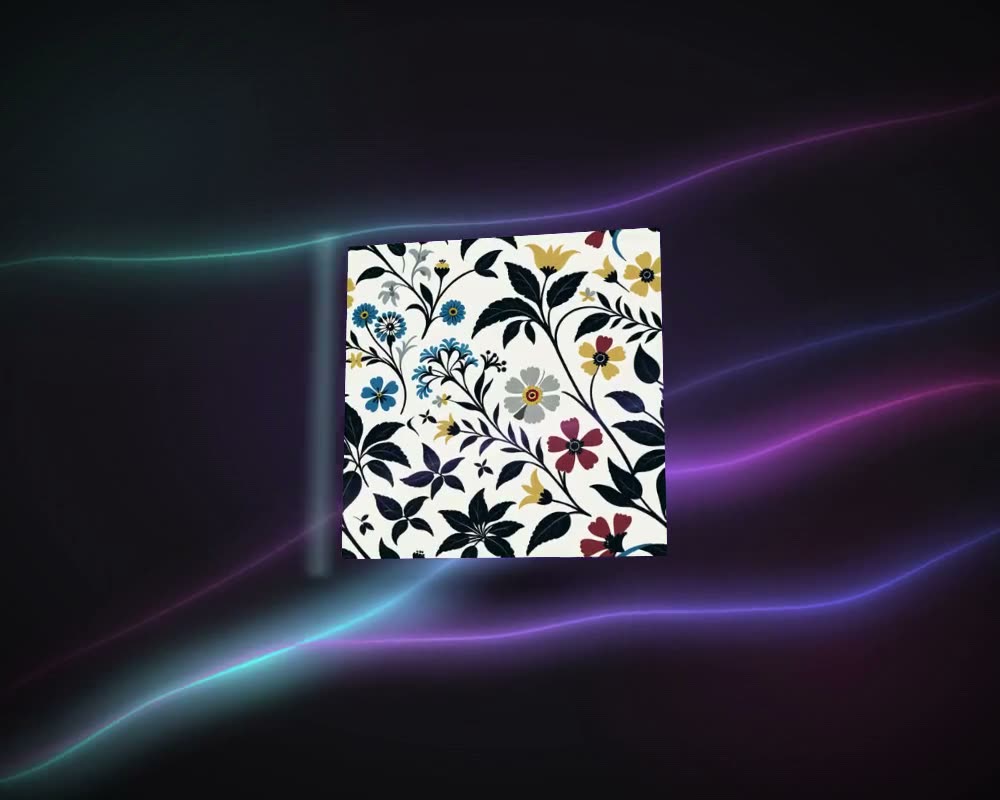
One design separated into its colours in MYTH Edit, then recoloured three ways. The leaves, the shading and the texture stay where they were; only the colours move.
What it is for
Colorways and colour separation
A colorway is the same print in another set of colours: one floral in navy for autumn, in coral for summer, in a buyer’s own palette. Colorway makes them from the design you already have. It separates the print into flat colours, 2 to 22 of them, each on its own layer, and you recolour it layer by layer, by a colour rule or from your saved palettes. Only the colours change: the motifs, the layout and, in Texture mode, the shading stay where they were.
Those layers are also a colour separation. Screen and rotary printing need one screen per colour, so a print first comes down to the number of colours the job allows: Reduce Layers merges the closest colours to the count you set, and TIFF with Layers hands over every colour on its own layer, ready for its own film. Flat mode fills each layer with the exact colour, the one to use when you match a Pantone reference.
Colorway works on any design in MYTH Edit, including a repeat made with Make Seamless. For a print that has to scale to any size, Vectorizer traces it into an SVG with one layer a colour instead.
Who uses it, and for what
Print designers
Show a buyer one print in several colorways, or bring a best-seller back for a new season without redrawing it.
Textile mills and printers
Bring a print down to the number of screens a job allows and hand over one layer per colour as a layered TIFF.
Home-textile brands
Match bedding, curtain and cushion prints to one palette, from Pantone, Coloro or the colours you saved.
Fashion and retail teams
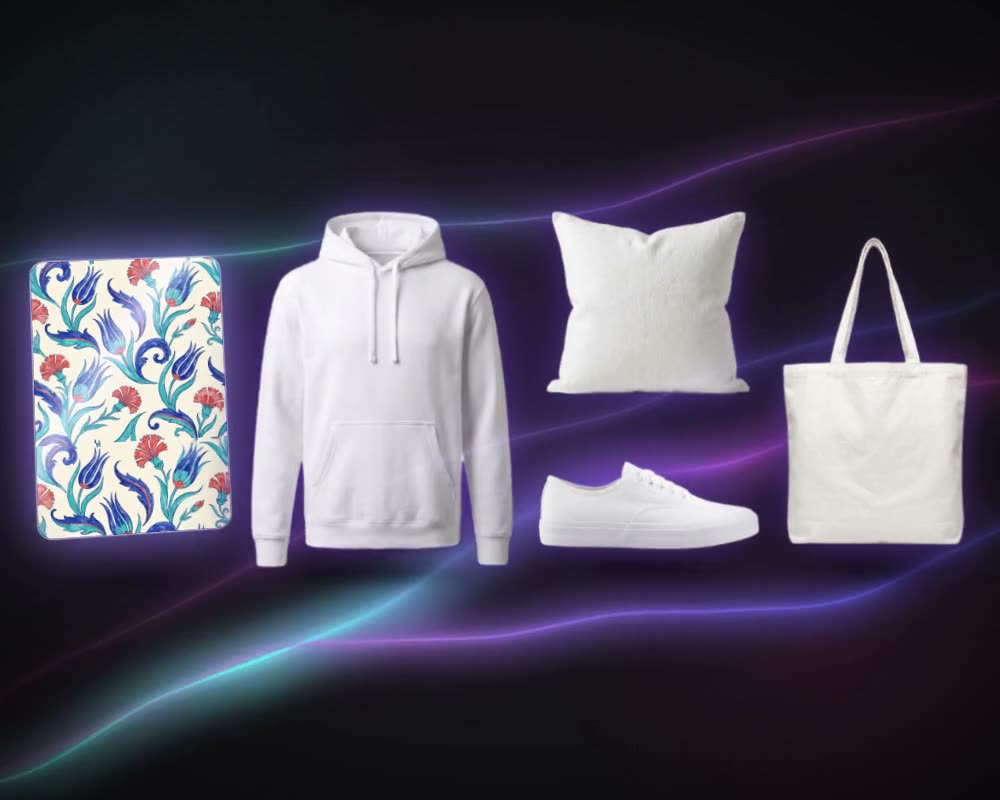
Build a range from one design in seasonal or trend palettes, then see each colorway on a product with Mockup Generator.
The details
What goes in, what comes out
- Where you find it
- MYTH Edit: right-click a frame, or use the toolbar. A result in Create with Chat can be sent there too
- Colours
- 2 to 22 per design, found automatically or picked on the image with the eyedropper
- Recolour mode
- Texture keeps shading and weave and turns the hue; Flat fills each area with the exact colour
- Colour rules
- Surprise me, Monochromatic, Analogous, Complementary and Triadic, with a reroll
- Colour books
- The nearest Pantone for every colour; Pantone (2,310), Coloro (3,500), 11 trend palettes and your own palettes in every picker
- Layer tools
- Merge Selected Layers, Increase Selected Layer (split the shades of one colour), Reduce Layers to a target count, Reset Colors
- Output
- Every variant is its own frame; up to 8 colour combinations saved per frame; export as TIFF, also with one layer per colour
- Cost
- Free: the colours are separated in your browser and no credits are used
Questions
About Colorway
Something else? Ask the team.
What is a colorway?
One design in a different combination of colours. Fashion and textile teams offer a print in several colorways so the same design can sell in different seasons, markets or ranges. In MYTH, each colorway opens as its own frame next to the original.
Does Colorway use credits?
No. Separating and recolouring happen in your browser, so Colorway is free on every plan. Only the AI tools in MYTH Edit cost credits.
Texture or Flat: which one should I use?
Texture keeps the highlights, shading and weave and only turns the hue, so it suits photographic and textured prints; the result can differ slightly from the exact code. Flat fills the area with exactly the colour you chose, which is what you want for Pantone matching and flat-colour prints. The choice also applies to the export.
Can I work to Pantone or Coloro?
Yes. Every colour layer shows its nearest Pantone, and the colour picker has the Pantone and Coloro books, trend palettes and the palettes you saved in your library.
The design has too many colours. What can I do?
Use Reduce Layers to merge the closest colours down to the count you need, or select layers and merge them. Increase Selected Layer does the opposite and splits the shades inside one colour.
Can I hand the colours over to production separately?
Yes. Right-click the colorway frame and download it as TIFF with Layers: each colour arrives on its own layer, so every colour can go to its own film.
How do I compare options?
Save a combination you like with Save Color Combination; up to 8 are kept per frame in your browser, and a click brings one back. Generated variants open side by side as their own frames.
Pattern AI · every plan
Try it on your own design.
Every plan includes every tool. Credits are in your account the moment payment is confirmed.