- All in MYTH
- Pattern AI
- Vectorizer
Pattern AI · In Editor · Image to vector
Vectorizer
Sharp at any size, one layer a colour.
Trace a raster design into an SVG that stays sharp at any size. Every colour becomes its own layer that you can move, recolour, merge or split before you download the file.
One layer a colourSVG
How it works
Three steps in Vectorizer
- 01
Pick the frame
In MYTH Edit, select a frame, open Vectorizer on the toolbar and press Convert to vector, or pick Vectorize Frame… from its right-click menu. The original frame stays where it is.
- 02
Choose the colours
Leave it on Automatic and MYTH finds the colours, or switch to Choose colors and click up to 24 on the image. The credits, priced by size, show before you press Vectorize.
- 03
Edit and download
The vector lands in a new frame, one layer a colour. Merge selected, Reduce similar colors or recolour a layer, then Download SVG.
See it work
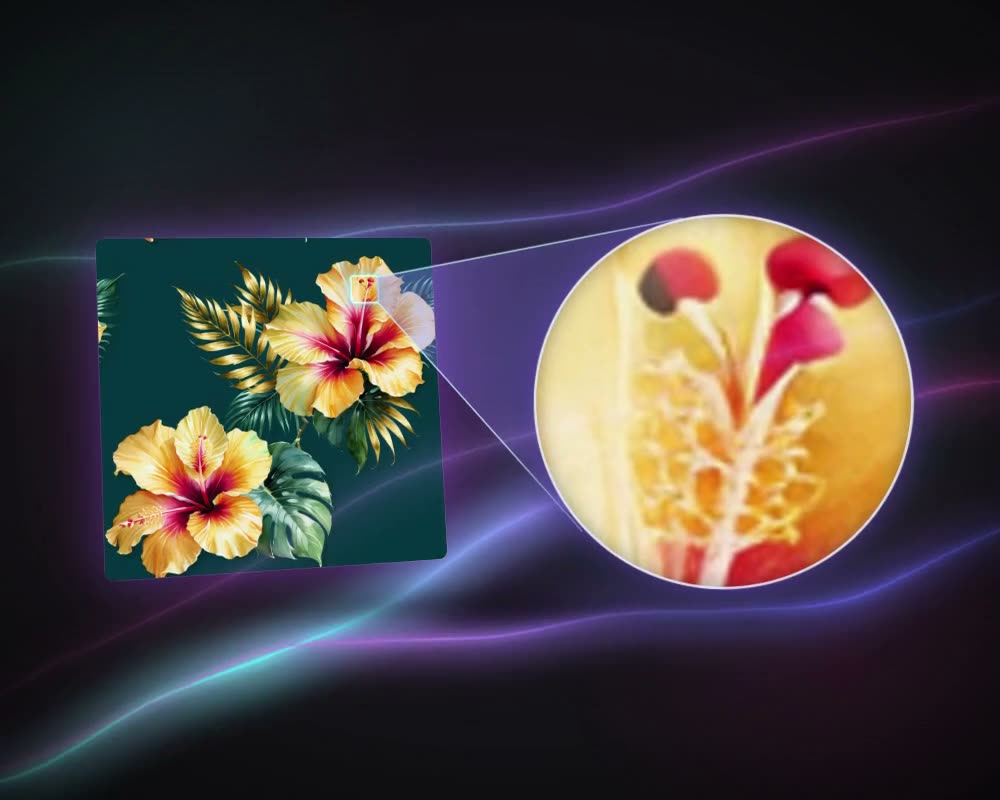
Zoom in. The vector stays sharp
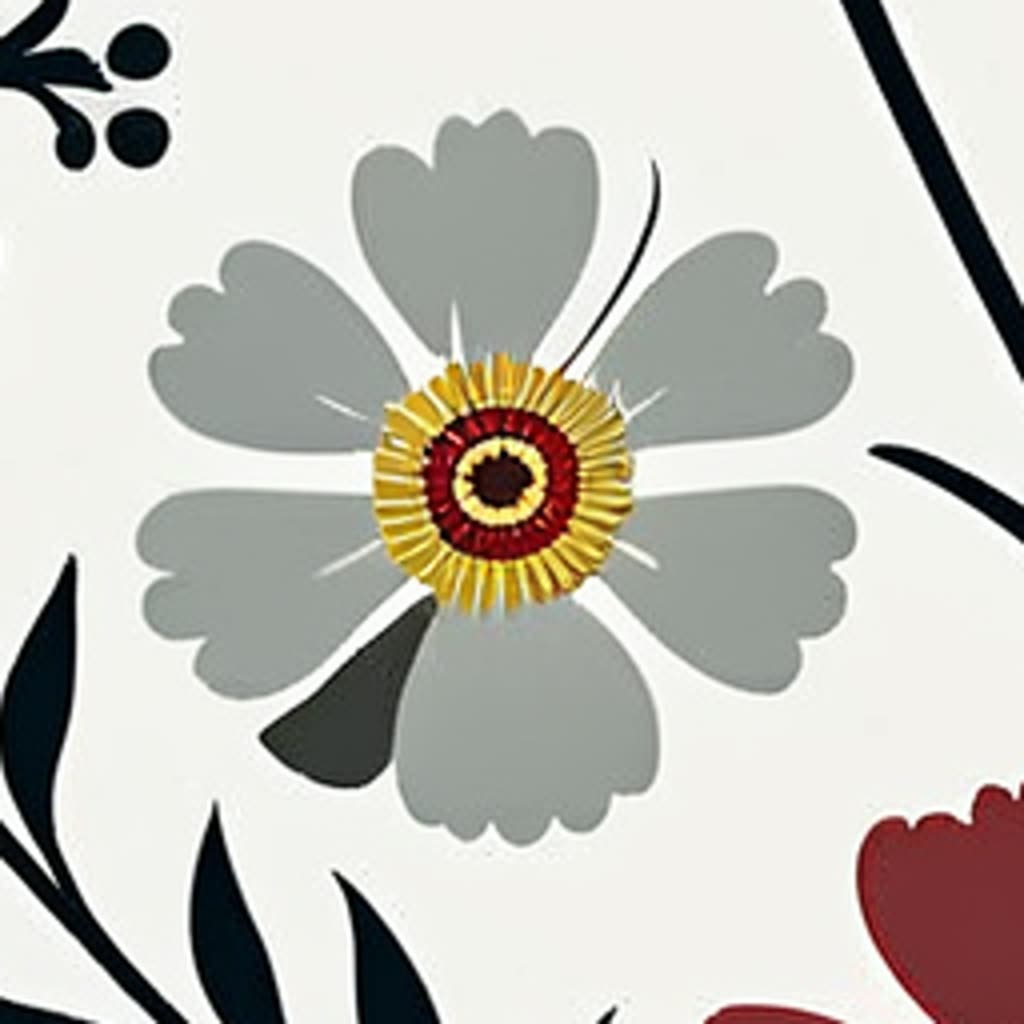
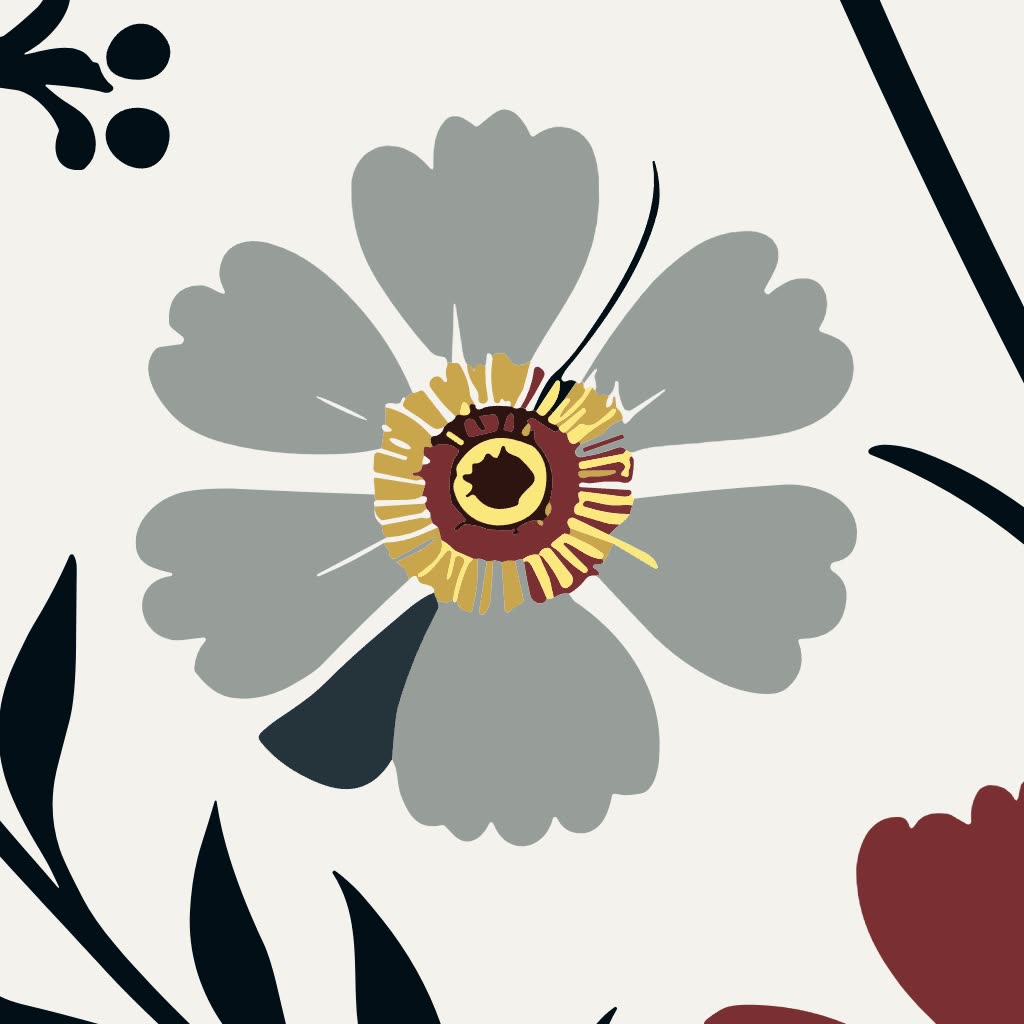
The same flower at four times its size. The original pixels go soft; the SVG from Vectorizer keeps every edge crisp. Drag to compare.
Print production
Colour separation, one layer a colour
Screen and rotary printing lay down one colour at a time, each through its own screen, so a print has to be separated into its colours before the screens are made. Vectorizer in MYTH Edit separates as it traces: the raster design becomes an SVG with every colour on its own layer. On Automatic MYTH finds the colours; with Choose colors you click up to 24 on the image, and the vector is built from exactly that palette.
Fewer colours mean fewer screens. Reduce similar colors merges layers that are the same or close, Merge selected joins the ones you pick, and any layer can take an exact colour from the picker, Pantone and Coloro included. Export This Layer as SVG saves a single colour as its own file. And because the result is vector, the same print scales from a swatch to a curtain or a duvet cover with clean edges.
For digital printing, which prints straight from the image, keep the raster and enlarge it with Upscale Pro. To try new colours without tracing, Colorway splits the same design into colour layers in your browser, for free.
Who uses it, and for what
Print studios
Split a design into a fixed palette, bring the colour count down for the screens, and hand each colour over as its own layer.
Textile mills
Turn a customer’s raster artwork into clean colour layers, match each layer to a Pantone or Coloro reference, and keep the original frame beside it.
Home-textile and large-format prints
Scale one design from a cushion to a curtain or a duvet set without soft edges: a vector has no pixels to blow up.
Designers who finish in a vector editor
Download the SVG and carry on in the vector program you already use, with each colour kept together in its own group.
The details
What goes in, what comes out
- Where you find it
- MYTH Edit: the toolbar or a frame’s right-click menu; also as a next step on results in Create with Chat
- Input
- Any frame on the canvas. Frames larger than 2048 × 2048 are traced at a reduced size; the vector itself stays sharp at any size
- Colour separation
- Automatic (MYTH finds the colours) or Choose colors (you pick up to 24 on the image)
- Output
- A new vector frame next to the original with one layer a colour; download the SVG, or export selected layers as SVG
- Layer tools
- Merge selected, Split by original color, Reduce similar colors, layer colour, Reset positions, Revert to original vector
- Layer colours
- From MYTH’s colour picker: HEX, RGB, CMYK, HSL or HSB, plus Pantone, Coloro and your own palettes
- Cost
- Credits priced by the frame’s size, shown before you start. Building and downloading the SVG is free; a failed run is refunded
Questions
About Vectorizer
Something else? Ask the team.
What do I get?
An SVG in a new frame next to your design, with every colour on its own layer. You can move, recolour, merge or split the layers before you download, and the original raster stays untouched.
How many colours will the vector have?
On Automatic, MYTH reads them from the design. With Choose colors you click up to 24 colours on the image, and the vector is built from exactly that palette.
There are too many layers. Can I simplify them?
Yes. Reduce similar colors merges layers whose colours are the same or close, and Merge selected joins the layers you pick. Split by original color takes a merge apart again.
I moved a layer by accident. Can I put it back?
Reset positions moves the selected layers, or all of them, back to where they started. Revert to original vector resets colours, merges and positions in one go.
What does it cost?
The trace is priced by the frame’s size, and you see the credits before you press Vectorize. Building and downloading the SVG happen in your browser at no cost, and a failed run gives the credit back.
Can I use it for screen printing separations?
It gives you the colour split that separations start from: an SVG with one layer a colour, a palette you can fix with Choose colors, and any single layer exported as its own SVG with Export This Layer as SVG. Making the screens themselves happens at your separation or engraving step, outside MYTH.
Pattern AI · every plan
Try it on your own design.
Every plan includes every tool. Credits are in your account the moment payment is confirmed.