- All in MYTH
- Pattern AI
- Background Remover
Pattern AI · In Editor · Remove backgrounds
Background Remover
Lift the motifs, lose the ground.
Two models in MYTH Edit: the Pro Model lifts each motif off the fabric and sets it on white, the Free Model leaves a transparent PNG at no cost.
Pro or free modelTransparent PNG
How it works
Three steps in Background Remover
- 01
Select the image
In MYTH Edit, select an image layer and choose Remove Background from the toolbar or the Layer menu. A result in Create with Chat offers it as a next step too.
- 02
Pick the model
Pro Model separates the motifs from the fabric or ground, element by element, and puts white behind them. Free Model uses your device’s GPU and makes the background transparent.
- 03
Compare and finish
Drag between Original and Result, keep the background transparent or give it a colour, then press Done. Restore original brings the first image back at any time.
See it work
Off the ground, motif by motif
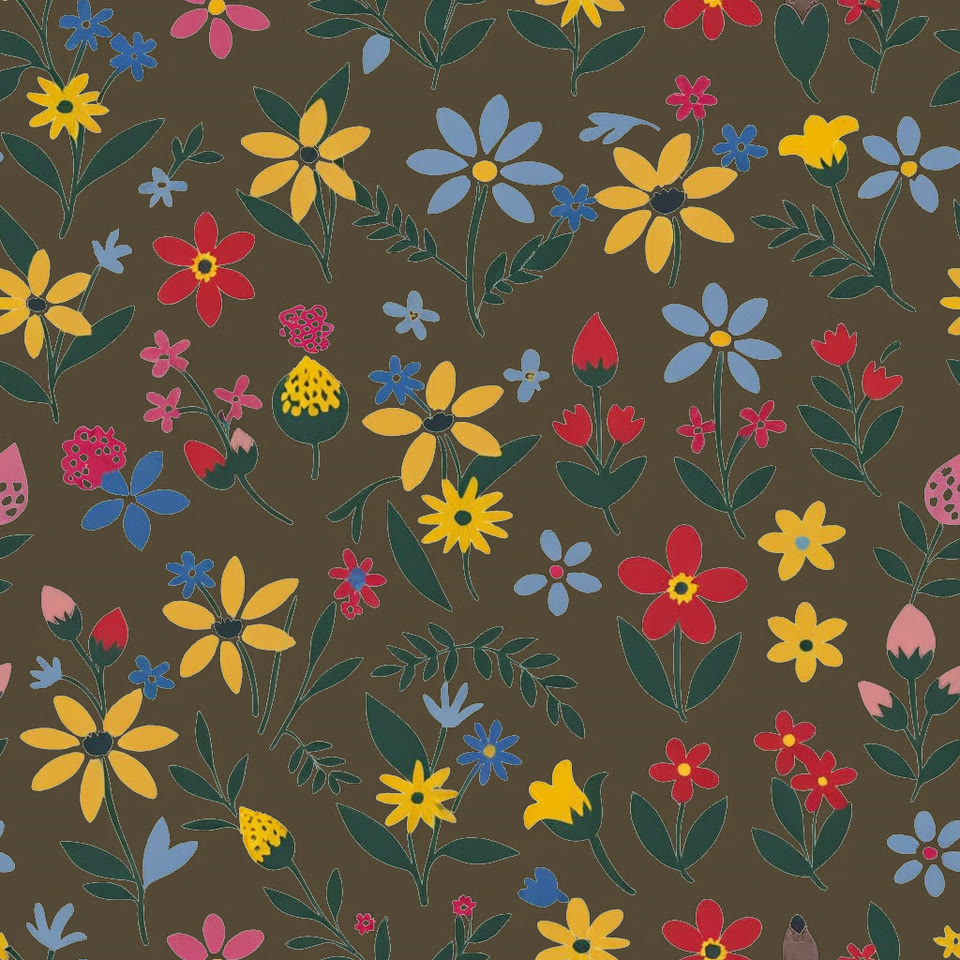
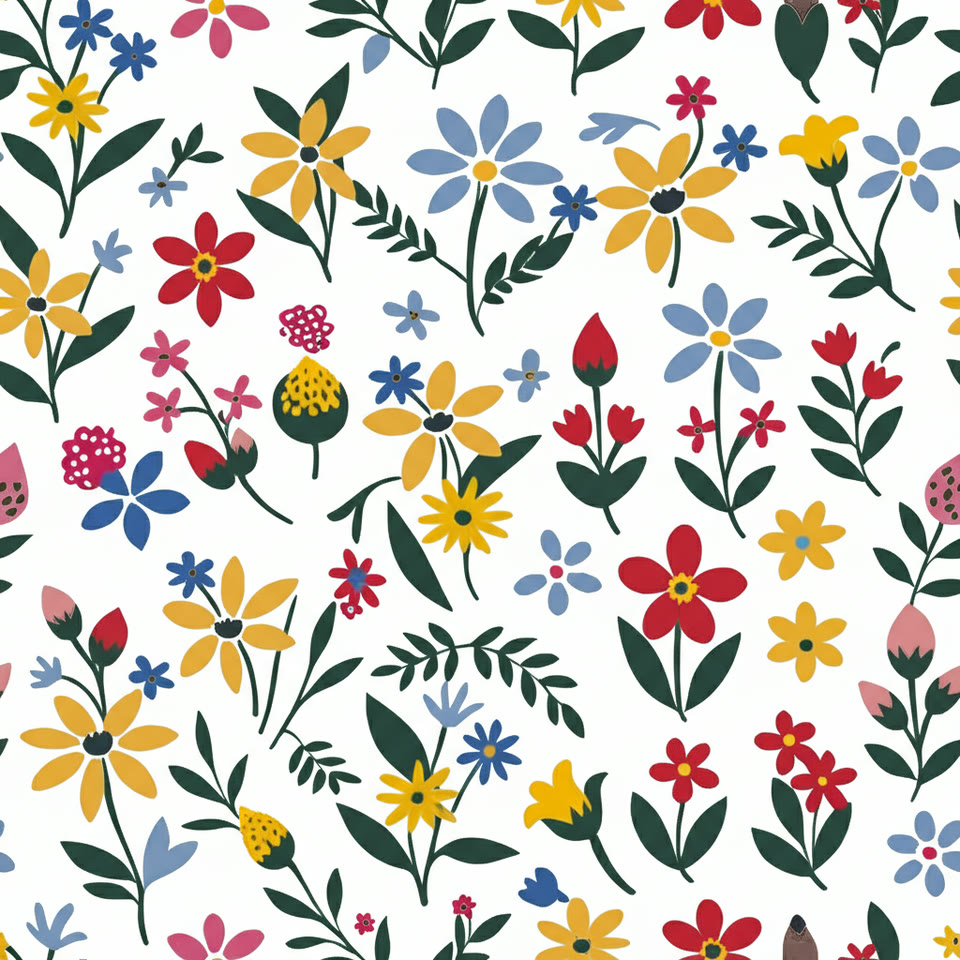
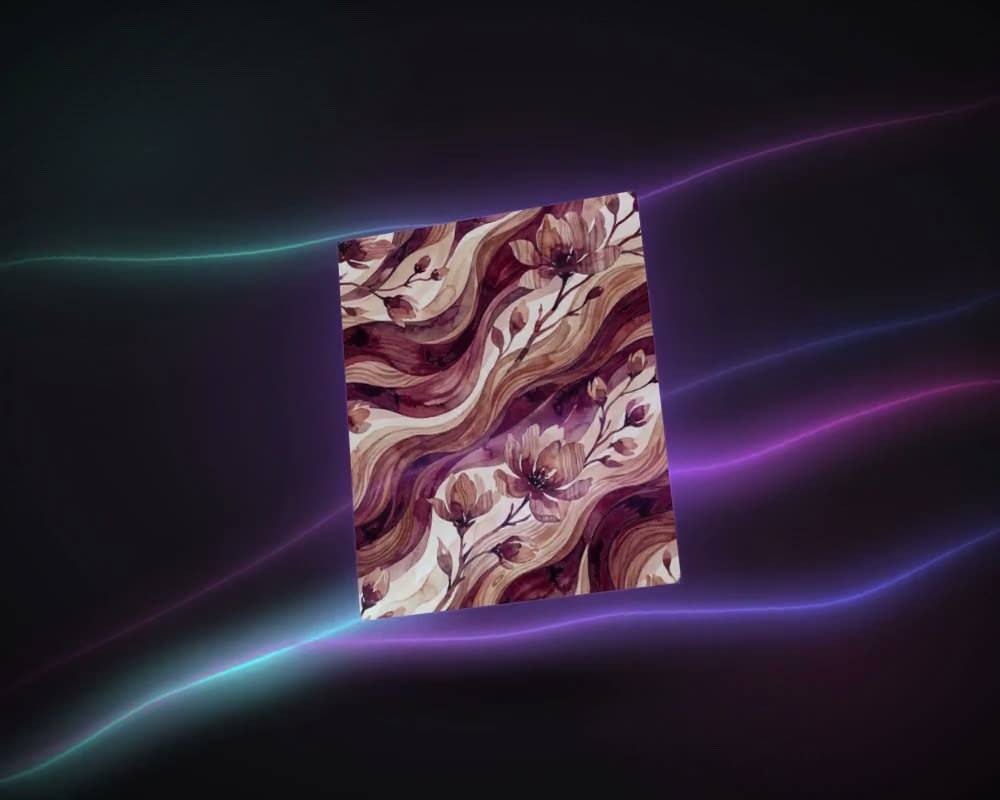
A floral print on a dark ground, before and after the Pro Model. Every flower and leaf stays where it was; only the ground changes. Drag to compare.
What it is for
Clean motifs, ready to reuse
In a print, the ground is the background and the flowers, figures or graphics on it are the motifs. Separating the two is everyday work: to reuse a motif from an older design, to cut a placement graphic free for a garment, or to change the ground colour without touching the artwork. By hand, with a lasso or a mask, it takes a long time on a busy floral, where every petal and leaf has its own edge.
Background Remover does it in MYTH Edit with two models. The Pro Model is made for motifs on fabric, texture or a busy ground: it separates them element by element and sets them on white. The Free Model runs on your device and leaves a transparent PNG at no cost. The original stays with the layer, and a new ground colour goes in as its own layer behind the motifs.
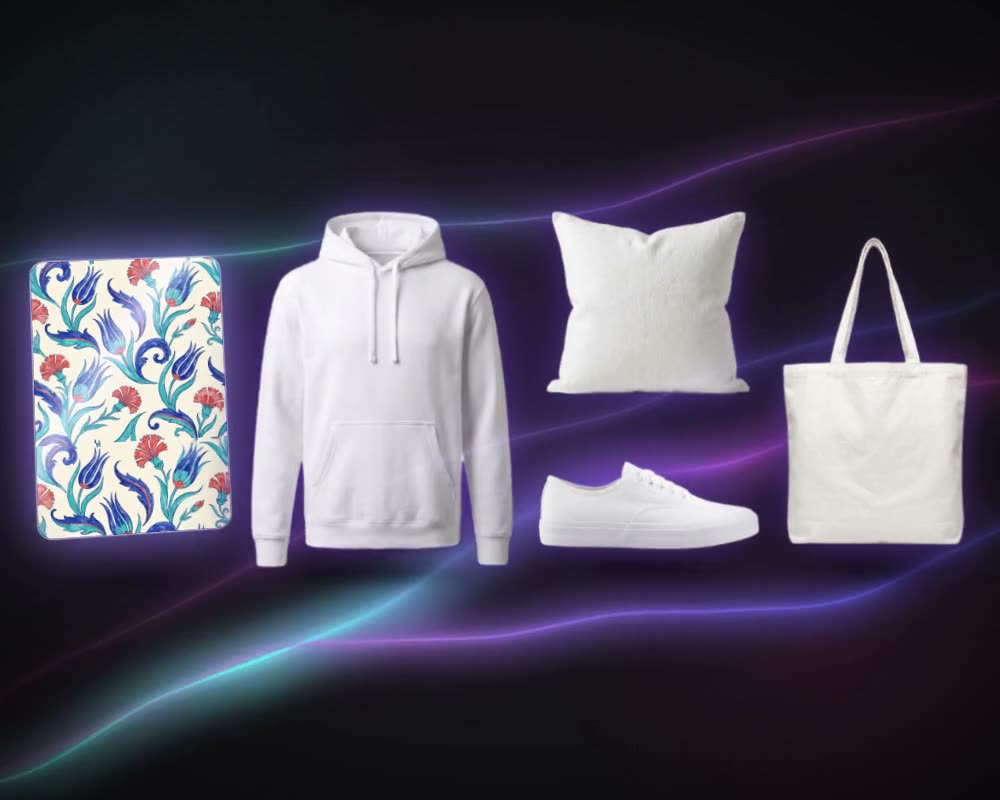
From there, arrange the motifs into a seamless print with Make With Elements, recolour them with Colorway or put them on a product with Mockup Generator.
Who uses it, and for what
Print designers
Lift motifs from an existing print or an archive design and rearrange them into a new all-over print.
Fashion graphic teams
Cut a placement graphic free as a transparent PNG for a T-shirt, a sweatshirt or a mockup.
Home-textile designers
Take a central motif off its ground to change the ground colour, or to reuse it on cushions and bedding.
Product and e-commerce teams
Put a product image on a transparent or coloured background for a catalogue or a listing.
The details
What goes in, what comes out
- Where you find it
- MYTH Edit, on the toolbar and in the Layer menu; also as a next step on results in Create with Chat
- Pro Model
- 2 credits a run. AI separates the motifs from the fabric or background, element by element, and puts a white backdrop behind them
- Free Model
- No credits. Runs on your device’s GPU and makes the background transparent (PNG)
- Works on
- One image layer at a time: from your computer, your uploads and generations, your collections or MYTH Gallery
- New background
- Transparent, a preset colour or any colour from the picker, Pantone and your palettes included; it sits behind as its own colour layer
- Original
- Kept with the layer: compare again or restore it whenever you like
- If a run fails
- The credit is restored
Questions
About Background Remover
Something else? Ask the team.
Which model should I use?
The Pro Model is made for motifs on fabric, texture or a busy ground: it lifts every element off and sets it on white. The Free Model suits simpler images: it runs on your own device, costs nothing and leaves the background transparent.
Do I lose the original image?
No. The original stays with the layer. Open the comparison again to drag between the two, or restore the original in one click.
Can I put a new colour behind the motifs?
Yes. Choose a preset or any colour from the picker, including Pantone and your saved palettes. It goes in as a separate colour layer behind the motifs, so you can change it later, and it is part of the export.
What does it cost?
The Pro Model uses 2 credits a run and the Free Model none. If a run fails, the credit goes back to your balance.
What can I do with the motifs afterwards?
Arrange them into a repeat with Mirror Mode, recolour them with Colorway or put them on a product with Mockup Generator, all without leaving MYTH Edit.
How do I get a print off a photo of a garment?
Start with Pattern Extractor: it finds the patterns in the photo and extracts the ones you pick as flat, clean designs, free of folds and shadows. Background Remover can then lift the motifs off that print’s ground.
Pattern AI · every plan
Try it on your own design.
Every plan includes every tool. Credits are in your account the moment payment is confirmed.