- All in MYTH
- Studio
- Photoshooting AI
Studio · AI fashion photoshoot
Photoshooting AI
One garment, a full photoshoot.
Upload a garment photo, choose the model, the poses and the background, and get the look as a full set of frames: front, back, side and detail.
4 model types6-shot setFast or Economy
How it works
Three steps in Photoshooting AI
- 01
Add the products
Add product with its Garment photo: flat, on a hanger or worn all work. Then shoot every product on its own, wear them as a Single outfit, or build Random outfits or All combinations.
- 02
Choose the model
Pick the model type: AI Model, Create Your Own Model, Mannequin or Ghost Mannequin. Filter by gender, ethnicity and age, set the body type and expression, and choose the poses.
- 03
Frame and shoot
Choose the framing (the 6-shot set or single crops), the background and the output size, pick Fast or Economy delivery and press Start photoshoot.
See it work
One dress, three scenes
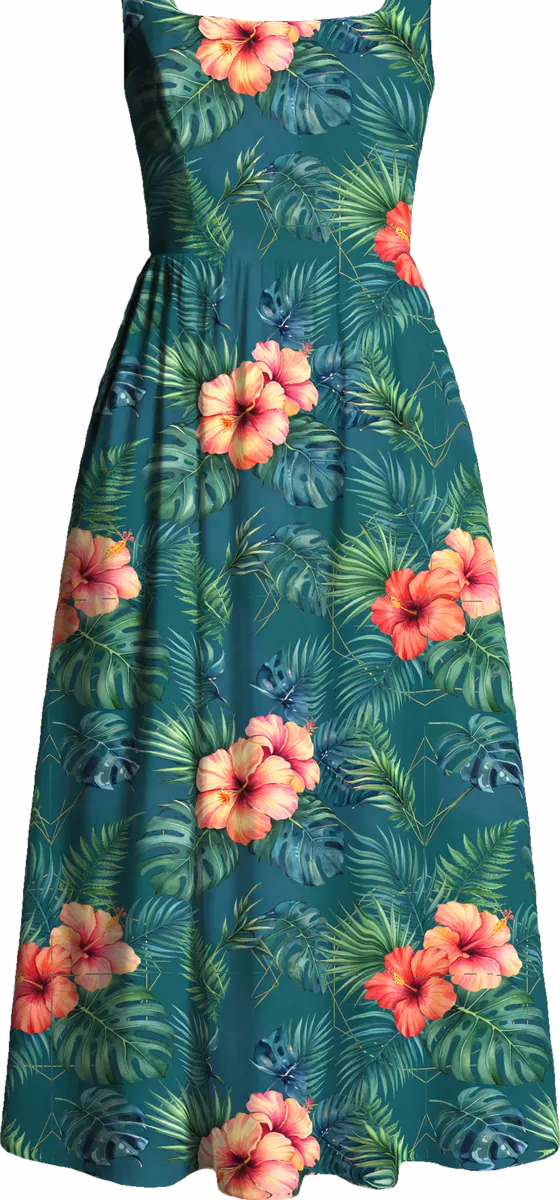
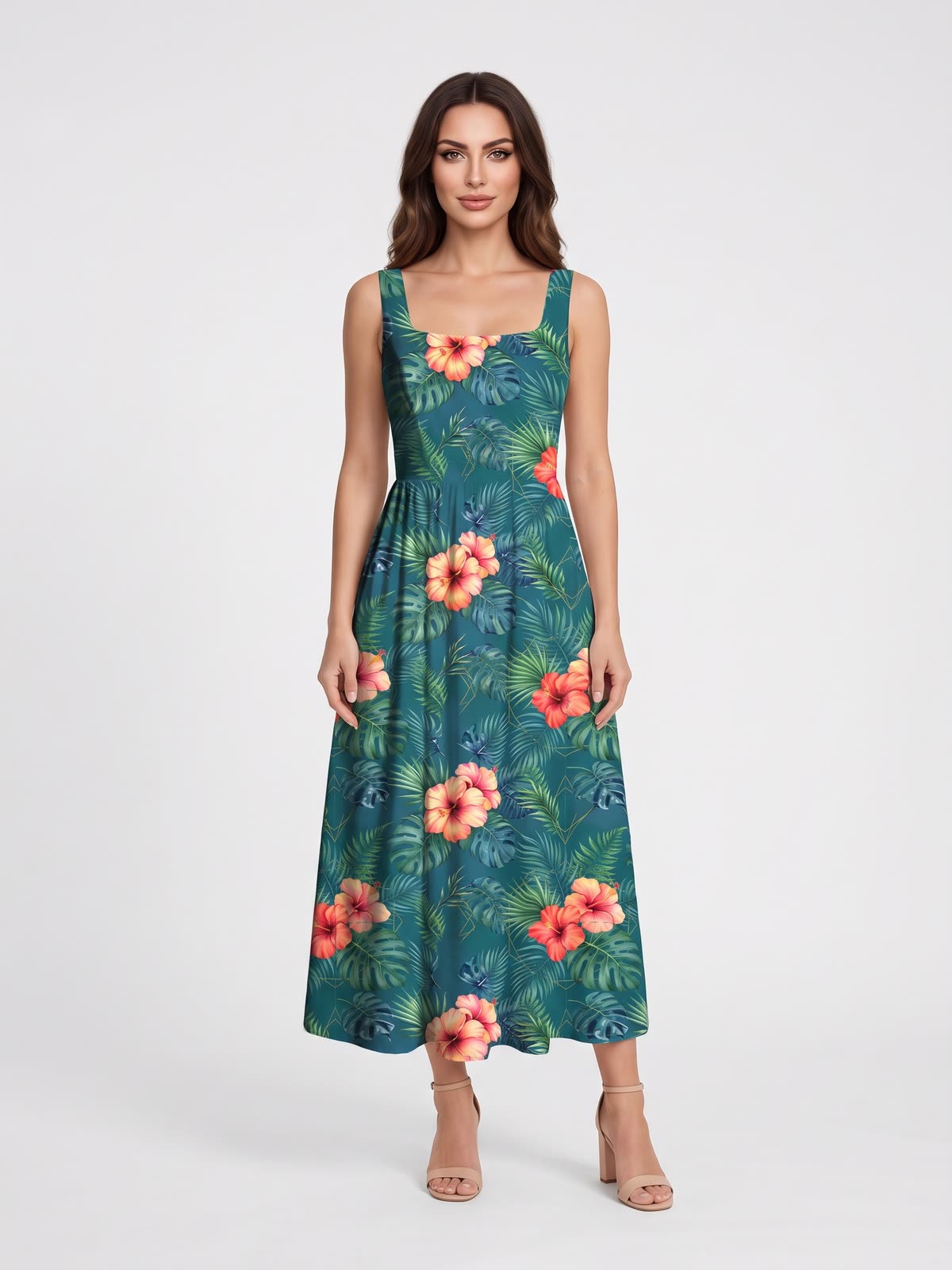
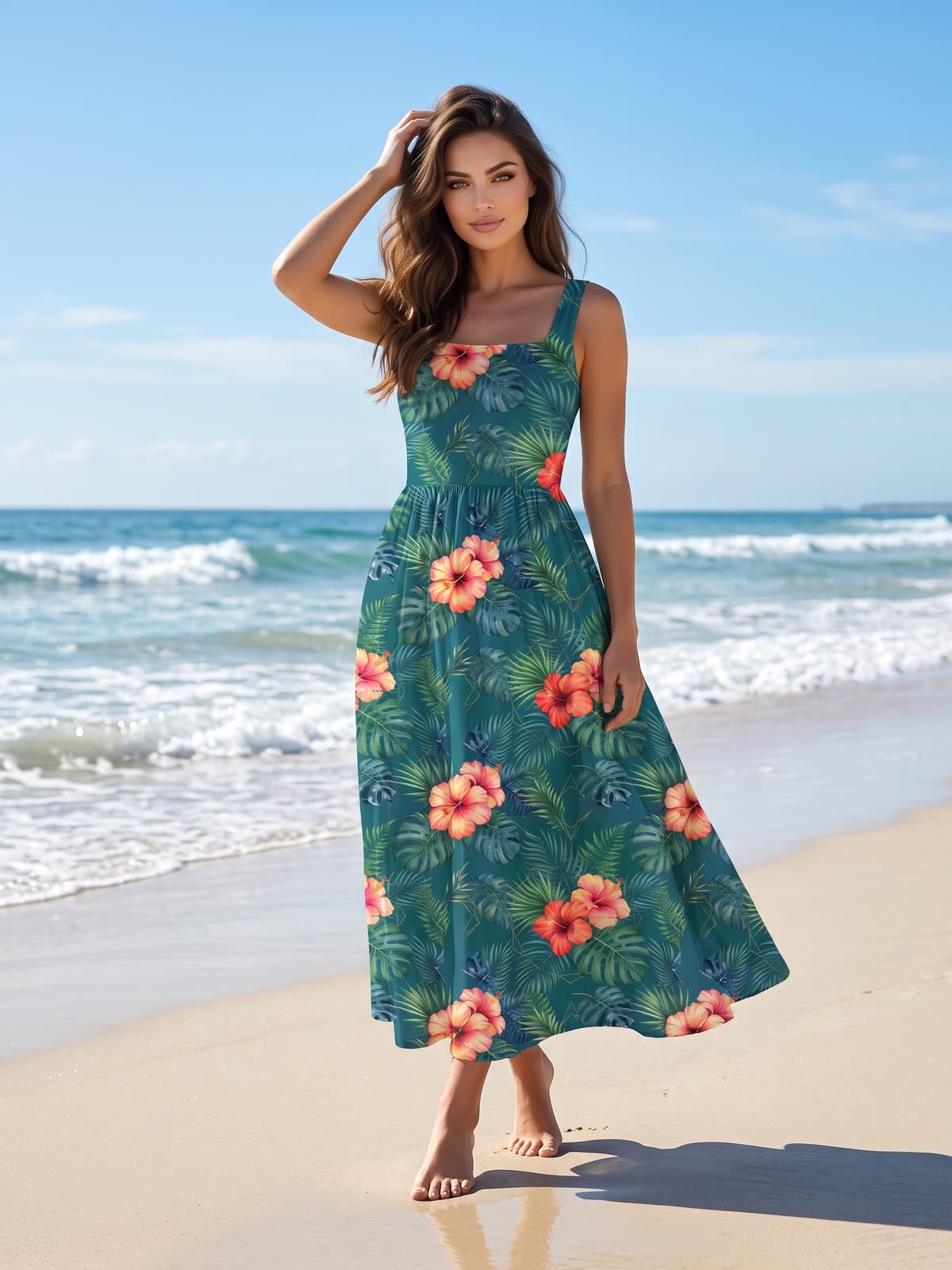
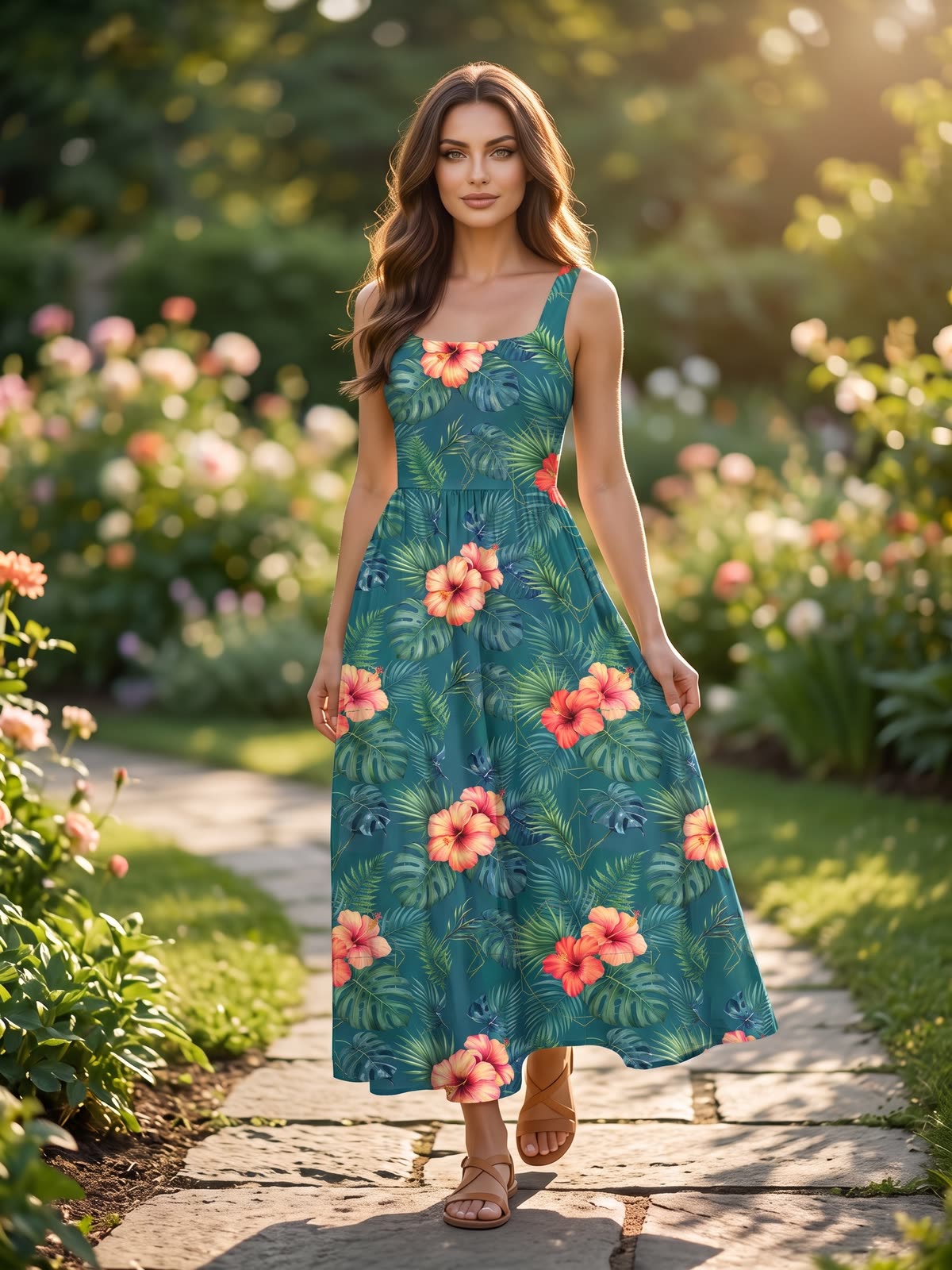
The same dress on the same AI model: a white studio shot for the web and two editorial backgrounds.
AI model photoshoot
On-model photos from one garment photo
Photoshooting AI is an AI fashion photoshoot studio inside MYTH. Start from the photo you have (a flat lay, a hanger shot or the garment worn) and dress it on one of four model types: an AI model, a model of your own (copied from a photo or generated), a studio mannequin or a ghost mannequin, for the invisible-model look of product pages. Choose the gender, age, body type and expression, the poses and the background, or upload a background of your own and keep it for the next shoot.
The 6-shot set gives a product page its usual frames: full front, full back, lower front and back, a 3/4 side and a pocket detail, at 1:1, 3:4, 4:3, 9:16 or 16:9 and up to 4K. For a model of your own, two or three reference photos keep the face the same across frames, and a registered logo is stamped onto the side and detail shots.
For a whole range, put up to 20 products in the wardrobe and shoot them one by one, as one outfit or in combinations, up to 500 frames in a batch; Economy delivery halves the credits per frame. The garment can be a real sample or a design from Create Product, like the dress above.
Who uses it, and for what
E-commerce teams
Shoot the product page images for a new drop on the same model, with the same framing and background, then reuse the settings for the next one.
Fashion brands
Turn sample photos into on-model and ghost mannequin shots for lookbooks and line sheets, ahead of the season.
Designers and product teams
See a print or a new style on a model before a sample is sewn, starting from a garment designed in MYTH.
Marketing and social teams
Put the same look in a studio, on a beach or in a garden, in 9:16 for stories or 16:9 for banners.
The details
What goes in, what comes out
- Garment photo
- Flat, on a hanger or worn: PNG, JPG, WEBP or TIFF up to 5 MB, plus up to 5 detail images
- Model types
- AI Model, Create Your Own Model (copied from a photo or generated), Mannequin and Ghost Mannequin
- Model choices
- Gender, ethnicity, age from 18 to 60 in four bands, body type from Slim to Plus size, and expression
- Framing
- 6-shot set: Full · Front, Full · Back, Lower · Front, Lower · Back, 3/4 Side and Pocket detail; or full, upper, lower body and detail crops
- Output
- 1:1, 3:4, 4:3, 9:16 or 16:9 at 1K, 2K or 4K; download as JPG or TIFF
- Delivery
- Fast: each frame arrives when it is ready. Economy: half the credits per frame, all frames together in a few minutes
- Limits
- Up to 8 garments in a look, 20 products in the wardrobe and 500 frames in one batch
- Logo
- Register a logo once and the real logo is stamped on the 3/4 Side and Pocket detail frames
Questions
About Photoshooting AI
Something else? Ask the team.
What kind of garment photo do I need?
A flat lay, a hanger shot or a photo of the garment worn all work. Set the photo angle so the studio knows which side it shows, and add up to five detail images of the garment.
Can I use our own model?
Yes. Under Create Your Own Model, copy a person from a photo, with changes such as hair colour or age if you like, or generate a new model from attributes. Two or three reference photos from different angles keep the face the same in every frame.
How do Fast and Economy differ?
Fast generates each frame on its own and shows it as soon as it is ready. Economy costs half the credits per frame: the frames wait in a bulk queue and arrive together after a few minutes. Shoots of more than 10 frames always go to the bulk queue.
What is a ghost mannequin photo?
A ghost mannequin, or invisible mannequin, photo shows a garment with the shape it has when worn, but with no model or mannequin in sight: a common style for product pages. In Photoshooting AI, choose Ghost Mannequin as the model type; it has its own set of poses.
Will our logo come out right?
AI cannot draw a logo letter for letter, so you register it once from a product photo and the studio stamps the real logo onto the 3/4 Side and Pocket detail frames.
Can I shoot a whole range at once?
Yes. Put up to 20 products in the wardrobe and shoot each one with the same settings, wear them together, or let MYTH build random outfits or every combination. One batch holds up to 500 frames.
Can I repeat a shoot for the next drop?
Yes. Find it under Past shoots and press Reuse: its model, pose, framing, background and output settings come back, ready for the next products. Backgrounds you upload are saved for later shoots too.
Studio · every plan
Try it on your own design.
Every plan includes every tool. Credits are in your account the moment payment is confirmed.