- All in MYTH
- Pattern AI
- Create Pattern
Pattern AI · AI pattern generator
Create Pattern
Describe it, show it, or both.
Write a prompt, add a reference image, or use both. MYTH reads your inputs, picks Text, Image or Image and Text to Design for you, and returns up to four designs a run.
Text, image or both1K · 2K · 4KUp to 4 a run
How it works
Three steps in Create Pattern
- 01
Describe or drop in
Write the motif, colours, ground and style in the Prompt, add an Image, or both. Enhance Prompt suggests richer versions of what you wrote.
- 02
Set the output
Pick Pro for sharper detail at 1K, 2K or 4K, or Normal for a Repeat Mode and exact pixel sizes. Ask for 1 to 4 under Number of Images.
- 03
Create and carry on
Press Create Pattern; the button shows the credit cost first. Pin a result to send it on to Make Seamless, Upscale Pro or another tool.
See it work
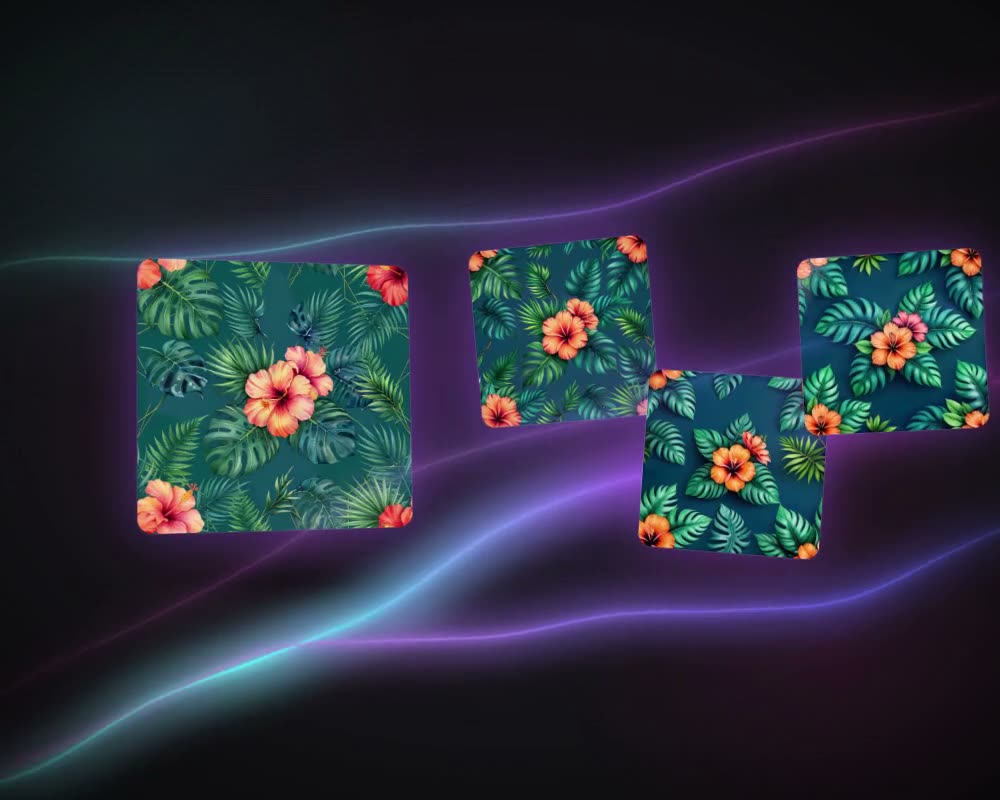
Straight out of Create Pattern
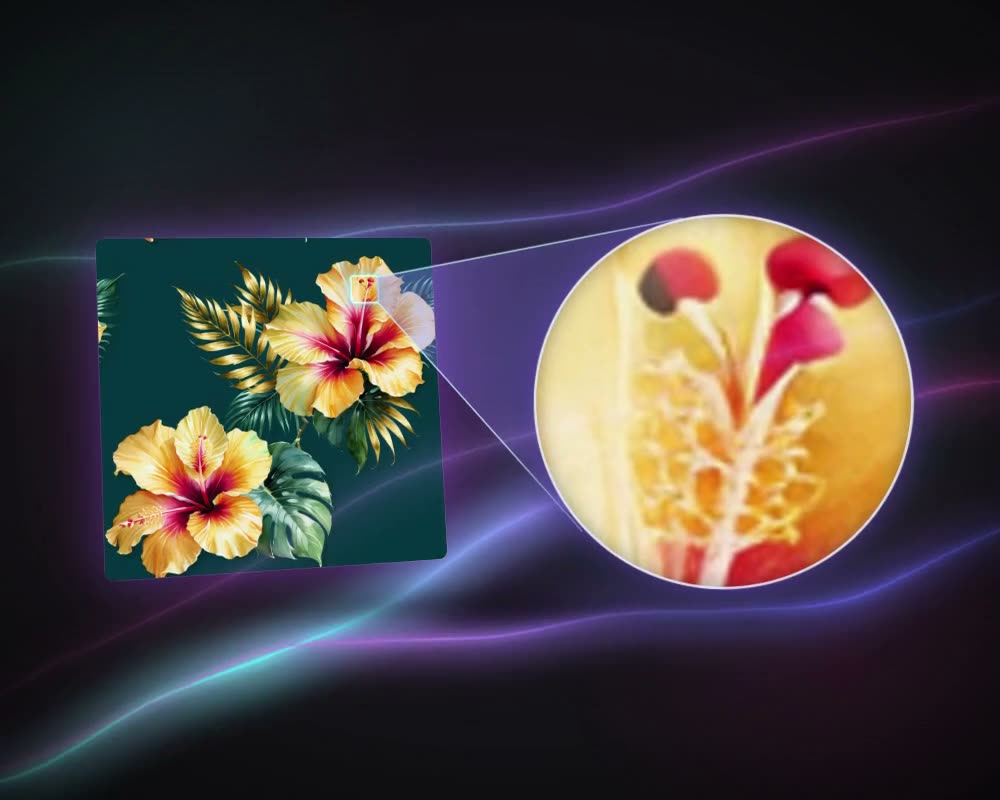
Three prints made in Pro mode, shown as the tool returned them.
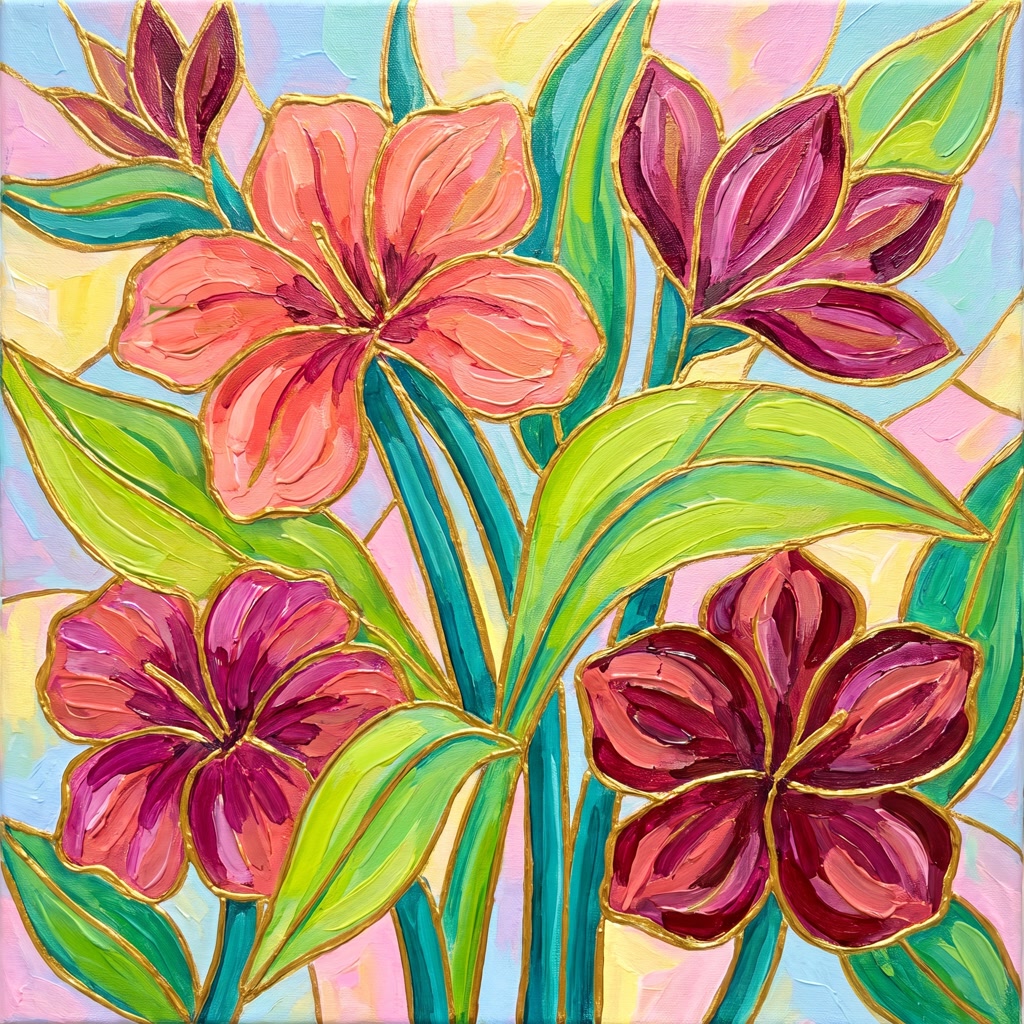
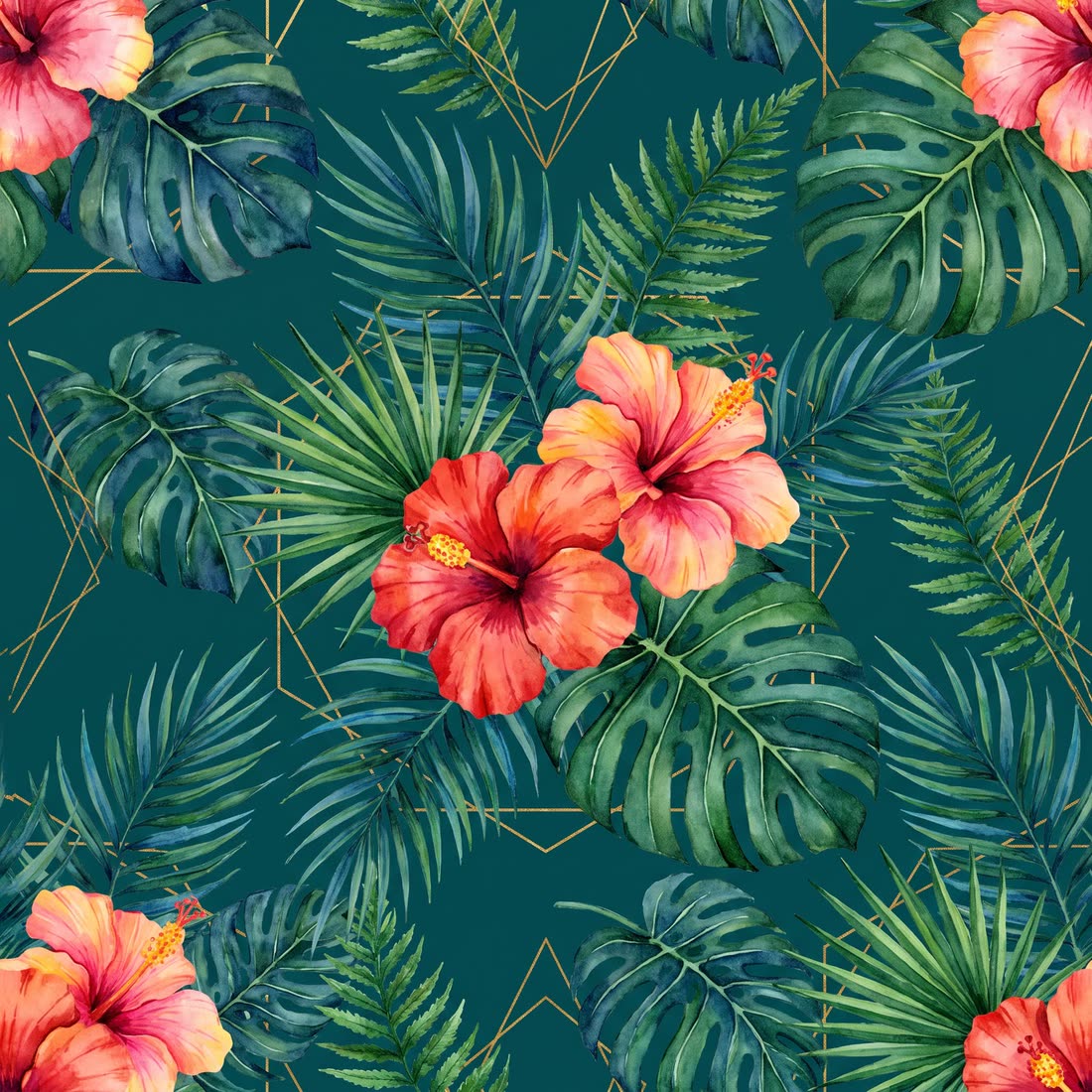
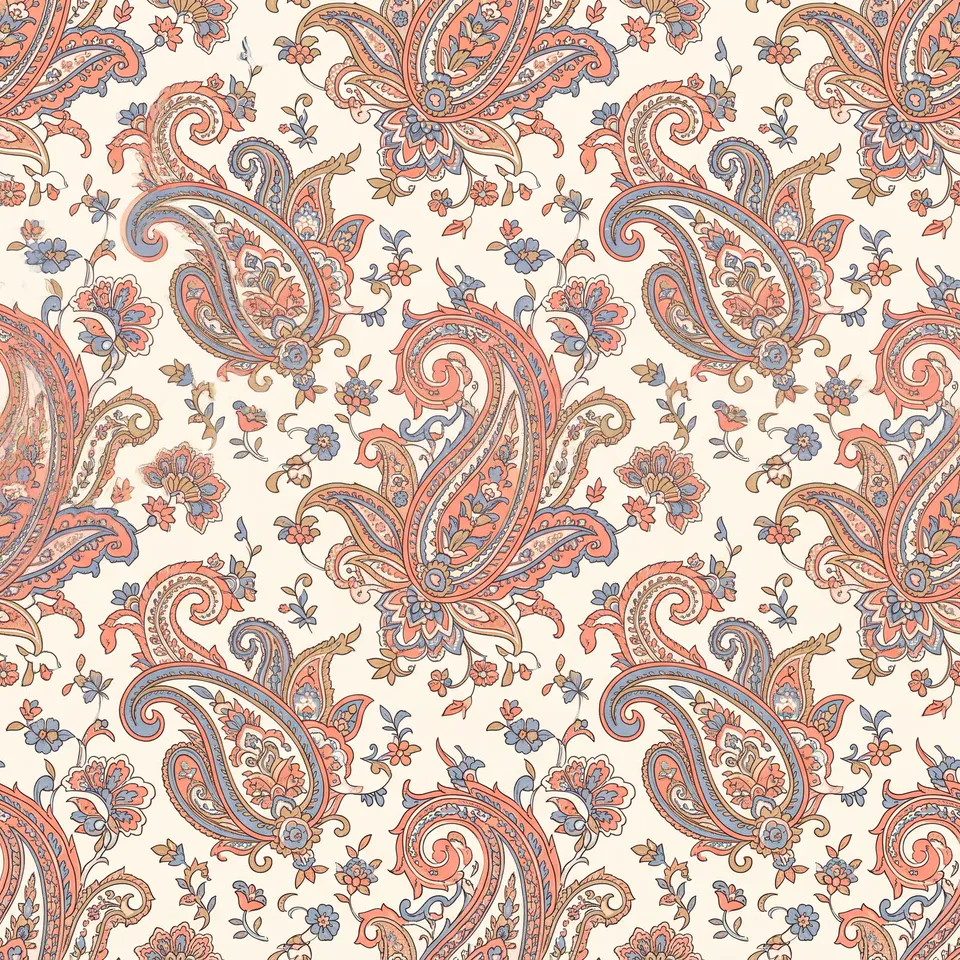
What it is for
Text to pattern, image to pattern
Create Pattern is the AI pattern generator in MYTH, made for fabric and print design. Describe a print in words (motif, colours, ground and style, such as watercolour pink peonies on a navy ground) and it draws it from text. Add a reference image instead, a moodboard picture, a swatch or an old print, and it builds a new design from it. Use both when the reference should change in a set way: keep the motifs, make the colours navy and gold.
What comes out is a print. In Normal mode, choose a Repeat Mode and the design arrives as a seamless Block, Half Drop, Brick, Horizontal or Vertical repeat for all-over fabric, or as a single print with Placement Design, such as a T-shirt chest print or a scarf. The guide to pattern repeat types shows how each repeat tiles. Pro mode makes single images with finer detail, up to 4K: put the one you keep into repeat with Make Seamless, or ask Generate Similar for more like it.
Who uses it
Print designers
Try several directions from one brief, up to four designs a run, and refine the one that works with Enhance Prompt, a negative prompt or a style.
Textile mills
Turn a buyer’s reference or brief into new print proposals, then take the chosen one on to a repeat, colorways and upscaling.
Home-textile brands
Prints for bedding, curtains, cushions and table linen, made as a Half Drop or Block repeat in Normal mode.
Fashion brands
All-over prints for dresses and shirts, and placement prints for T-shirts and scarves, from the same prompt bar.
The details
What goes in, what comes out
- Inputs
- A prompt of up to 750 characters, an image, or both. Images: PNG, JPG, WEBP or TIFF
- Routes
- Text to Design, Image to Design and Image and Text to Design, picked from what you add
- Pro mode (default)
- A newer model for sharper detail. 10 aspect ratios at 1K, 2K or 4K; prompts in any language
- Normal mode
- 18 Dimension presets, from 768 × 768 up to 2048 px on the long side, Sharpness 1 to 10 and a repeat mode
- Repeat modes
- Normal only: Block, Half Drop, Brick, Horizontal, Vertical, or Placement Design for a single motif
- Fine-tuning
- Negative Prompt, Styles (prompt only), and an Image ↔ Prompt balance in 5% steps when you use both
- Per run
- 1 to 4 designs (2 by default), each charged separately
- Cost
- Shown on the button before you create. 4K in Pro, and sizes over 1024 px from a prompt alone in Normal, cost more
Questions
About Create Pattern
Something else? Ask the team.
Text, an image or both: which should I use?
Use text when you can describe the print: motif, colours, ground and style. Use an image when you have a reference to work from. Use both when the reference should change in a set way, such as keeping the motifs and making the colours navy and gold; the balance slider decides which one leads.
What is the difference between Normal and Pro?
Pro uses a newer model for sharper, more detailed results, reads prompts in any language and outputs at 1K, 2K or 4K. Normal adds Sharpness, exact pixel sizes and repeat modes.
Can I get a repeat straight away?
Yes, in Normal: choose Block, Half Drop, Brick, Horizontal or Vertical under Repeat Mode before you create. Pro results are single images; send the one you like to Make Seamless to turn it into a repeat.
What is a negative prompt?
A short list of what you do not want in the design, such as a colour, a motif or a style. Leave it blank if nothing needs keeping out.
How many credits does a design use?
It depends on the mode, the size and how many designs you ask for. The button shows the total before you create, and a job that fails gives its credits back.
Can I write the prompt in my own language?
Yes, in Pro mode, the default: write the prompt in any language and it is understood automatically.
Pattern AI · every plan
Try it on your own design.
Every plan includes every tool. Credits are in your account the moment payment is confirmed.